Tutorial: a whole session in the desktop app
This walks through a complete session in valerian-gui, from raw frames to a saved picture, on
the two real sessions of a first session: five 300 s H-alpha lights of the
California Nebula with calibration frames, and sixty 10 s one-shot-colour Seestar frames of
IC 5070. Every picture is the real window on that data. Every control is listed, with its range
and default, in the desktop app reference.
You need the frames in folders (one folder per kind: lights, darks, flats, dark-flats)
and, for plate solving, the star catalogue gaia-dr3-g11.vcat beside the program (see
How plate solving works).
Part 1: monochrome, with calibration frames
1. Calibrate
Start the program (valerian-gui). The rail on the left shows the five steps; Calibrate is
open. Fill the boxes (type a path, or press Choose... for the system's folder dialog):
| Box | Value |
|---|---|
| Lights | california/lights |
| Darks | california/dark |
| Flats | california/flat |
| Dark flats | california/dflat |
| Bias | empty (this camera has none) |
| Calibrated frames go to | california-calibrated (filled in for you when you choose the lights) |
Press Calibrate lights. The notice above the picture counts the frames and names the one being calibrated. When it finishes the step on the rail gets a tick and "5 lights", the viewer shows the first calibrated frame, and the panel reports what was made.
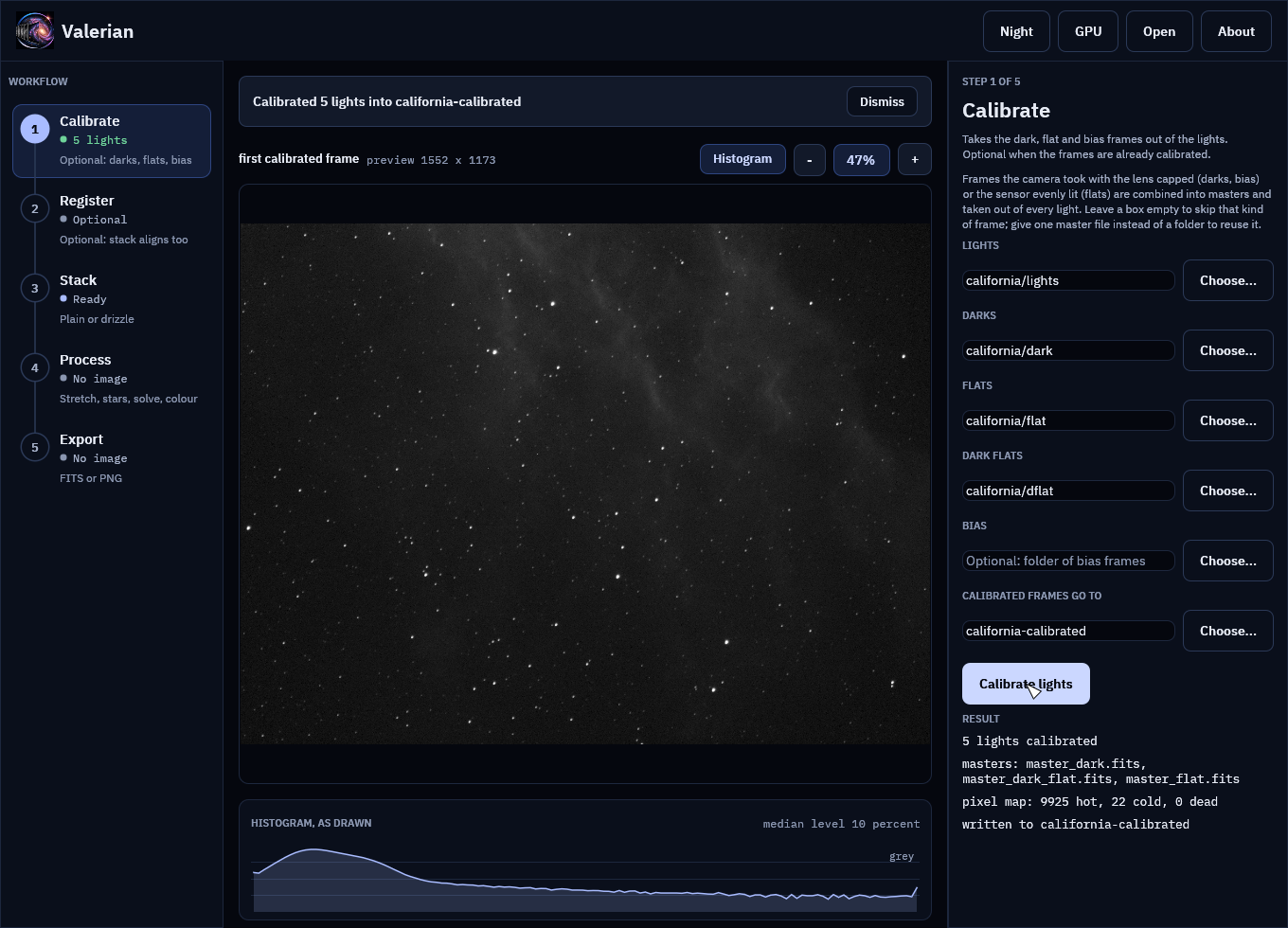
What to expect: ten darks combine with Winsorised clipping, thirty flats and dark flats with
linear-fit clipping; the pixel map found about 9,900 hot pixels at 300 s and they are repaired
(see How calibration works). The masters are in california-calibrated/masters,
and you can give a master file in place of a folder next time.
2. Register
Open Register on the rail. The frames box is already the calibrated folder. Press Register frames. While it works, the notice shows the frame it is on, its stars and its seeing; the viewer keeps the last picture.
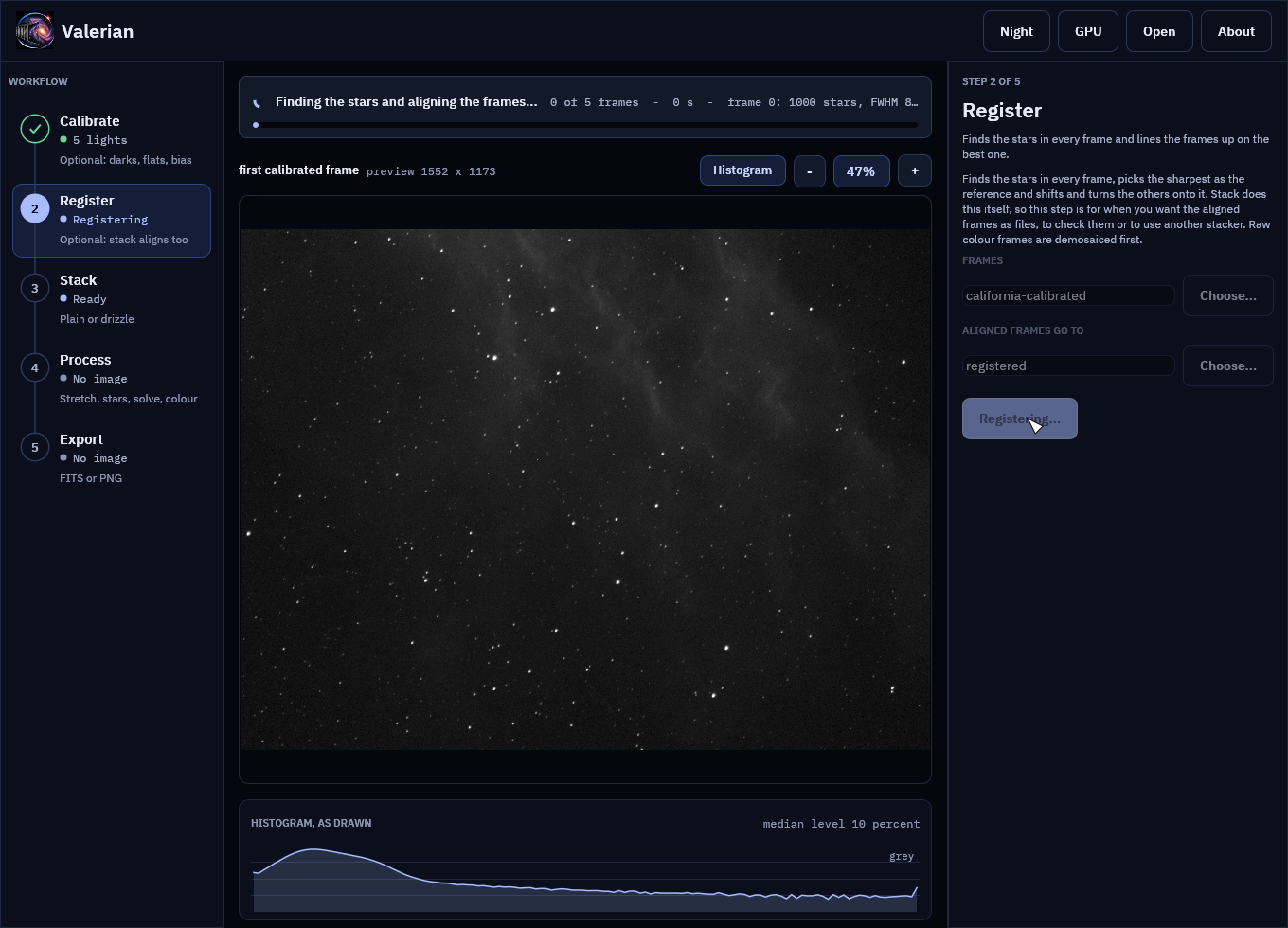
Expect "5 of 5 frames aligned" with a median residual well under a pixel. This step is optional: Stack aligns the frames itself. Use it to keep the aligned frames.
3. Stack
Open Stack. Leave the rejection on Automatic (Winsorised for five frames) and press Stack frames. The stack is written and opened, and the Process step opens by itself.
4. Process
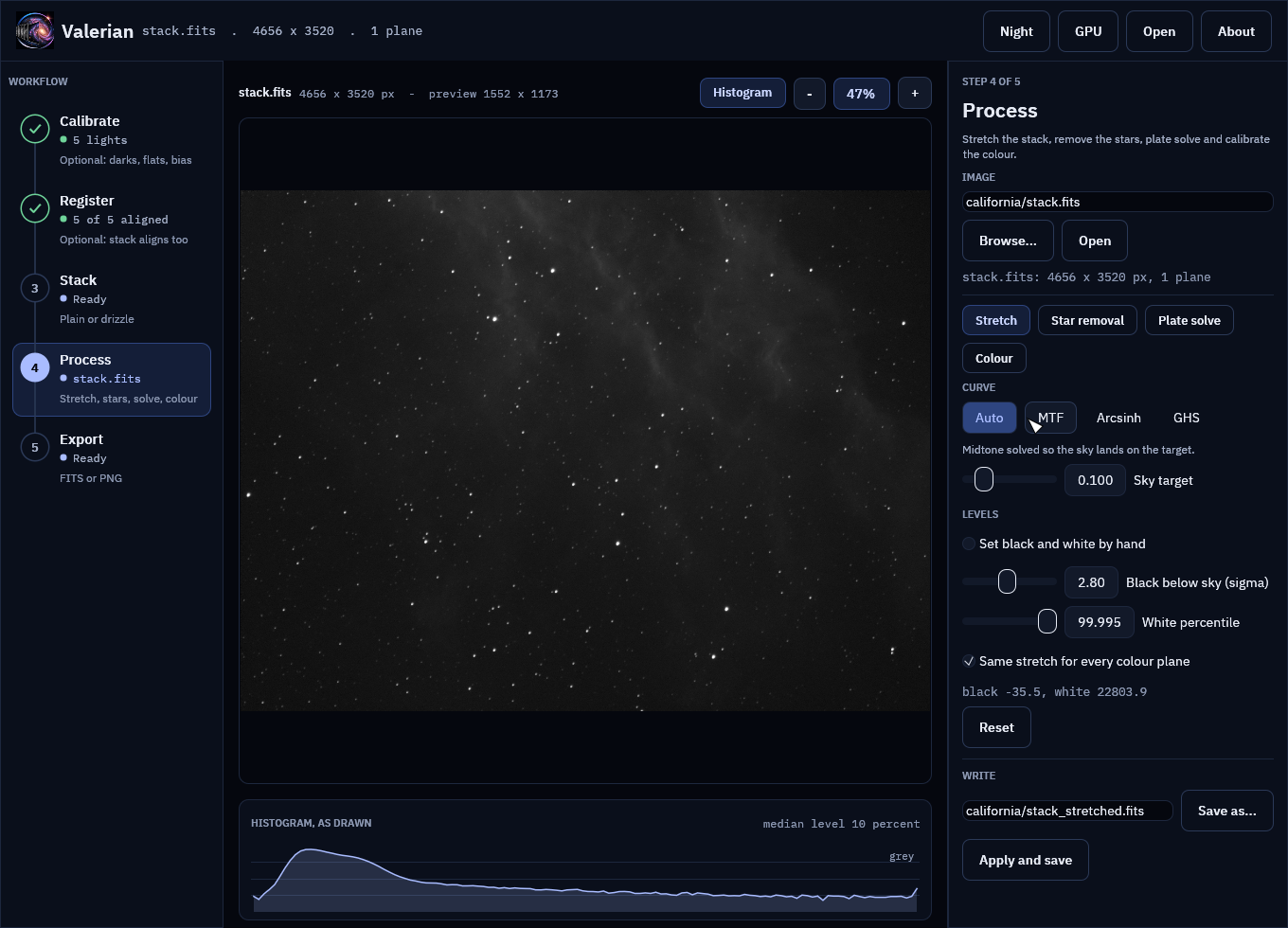
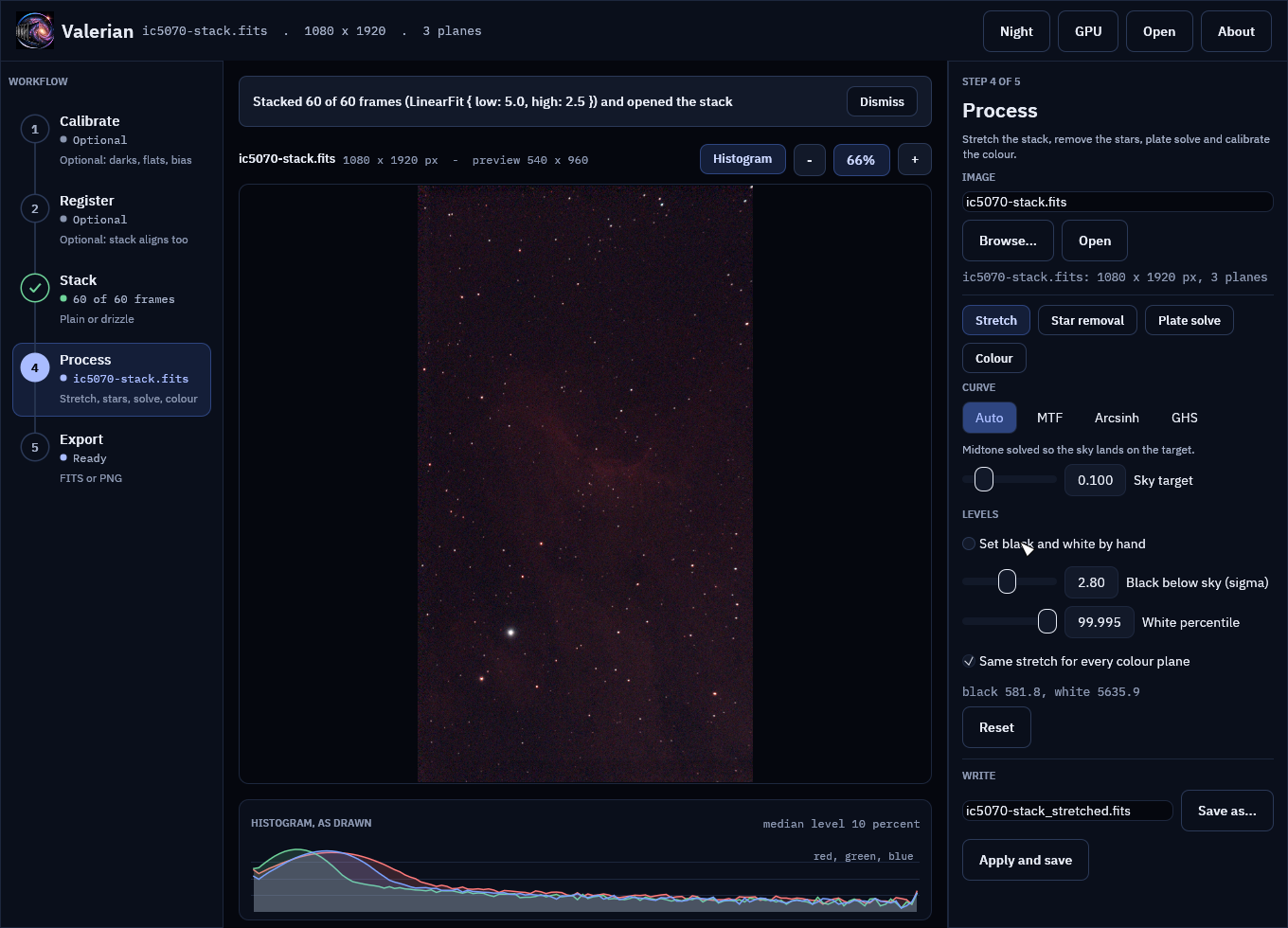
The rail shows Process with the file name. Press Stretch: the automatic stretch puts the sky at 10 % of the range, and the histogram under the picture shows it.
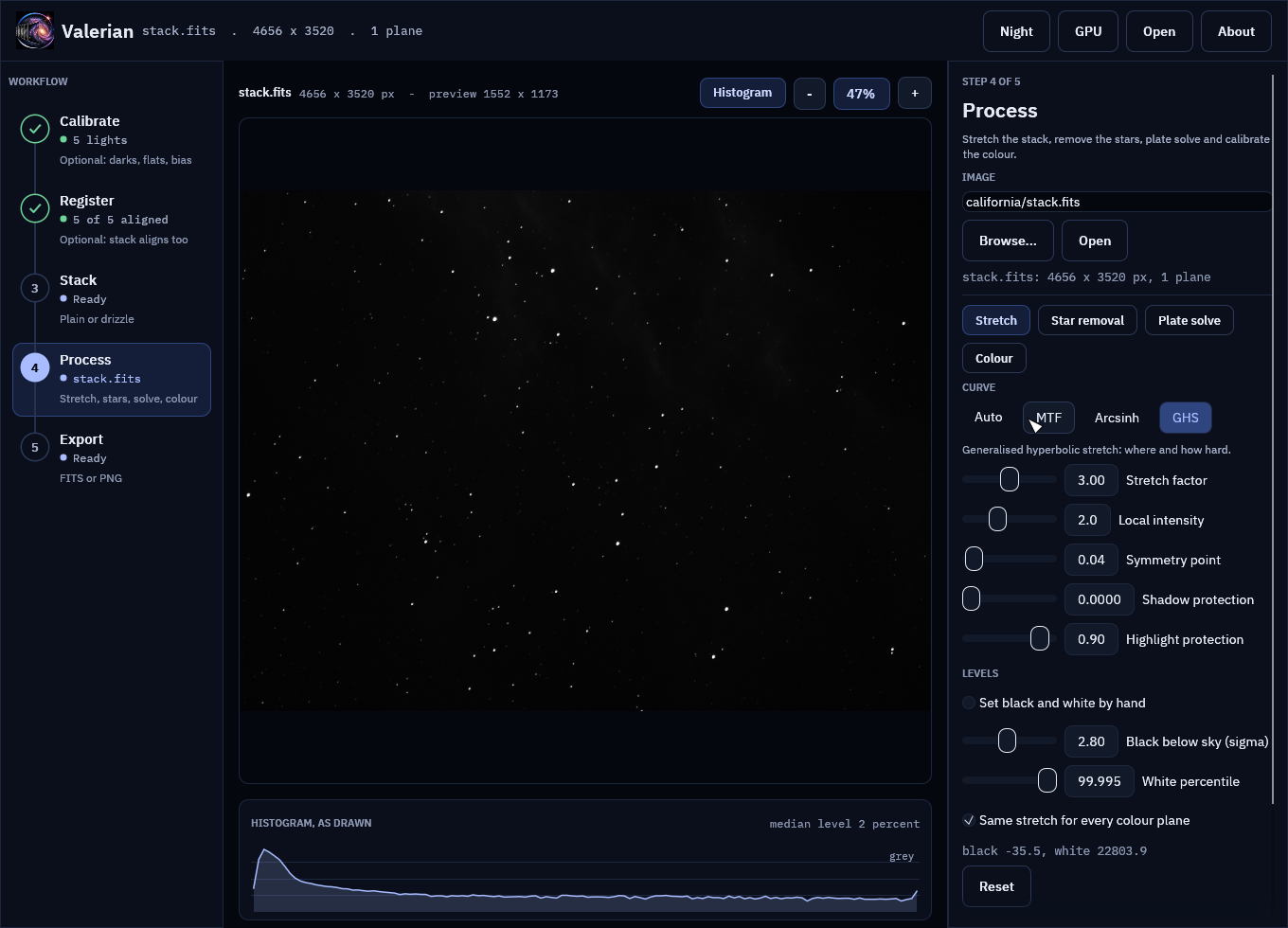
The nebula is faint. Choose GHS and set Stretch factor 3.0, Local intensity 2.0, Symmetry point 0.04, Shadow protection 0, Highlight protection 0.9. The picture follows each slider.
Scroll over the picture to zoom, drag to pan, double click to fit again.
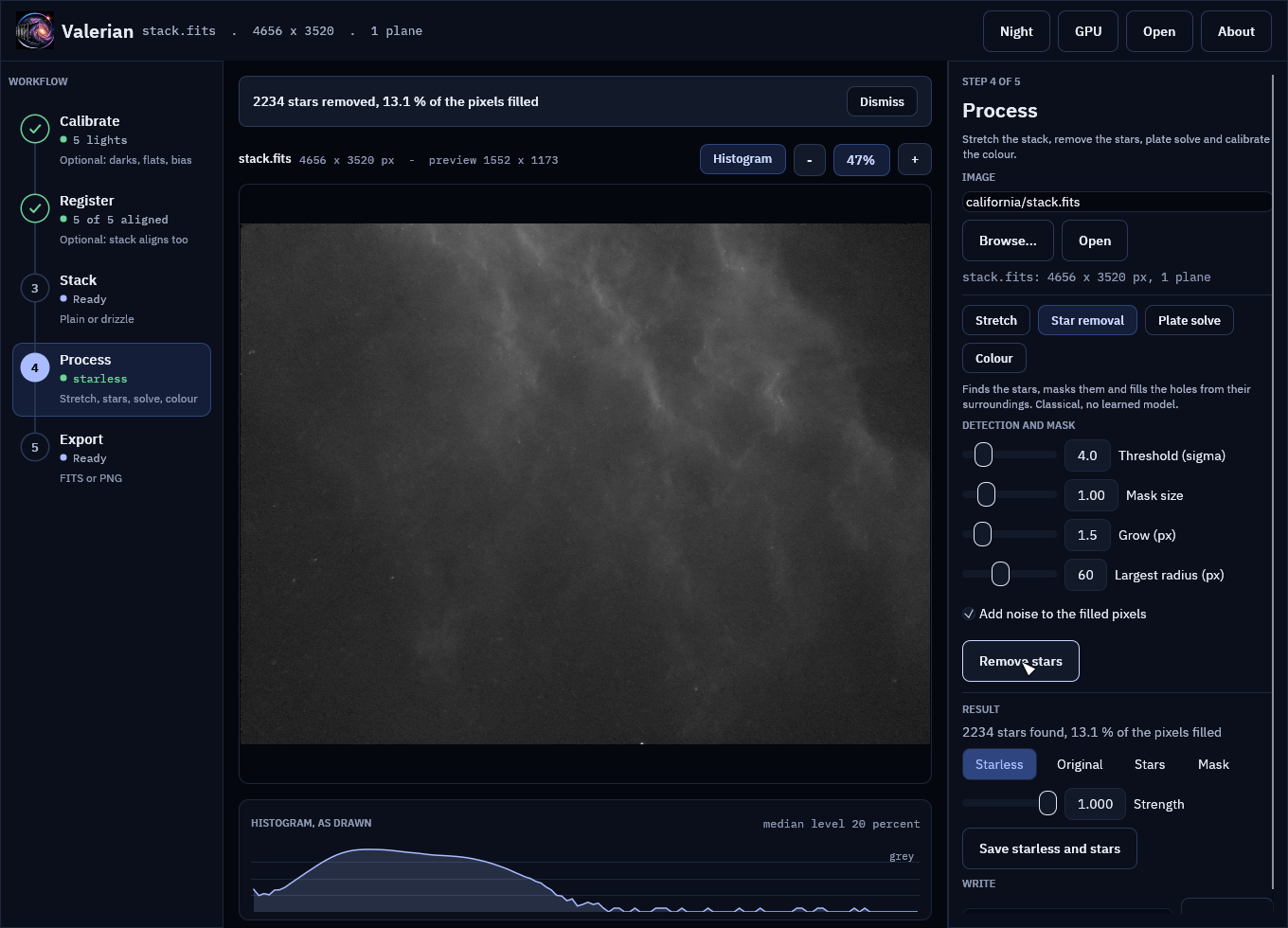
Choose Star removal and press Remove stars (defaults). On the 4656 by 3520 stack it takes a few seconds and reports "2234 stars removed, 13.1 % of the pixels filled". Original, Stars and Mask compare the layers.
5. Export
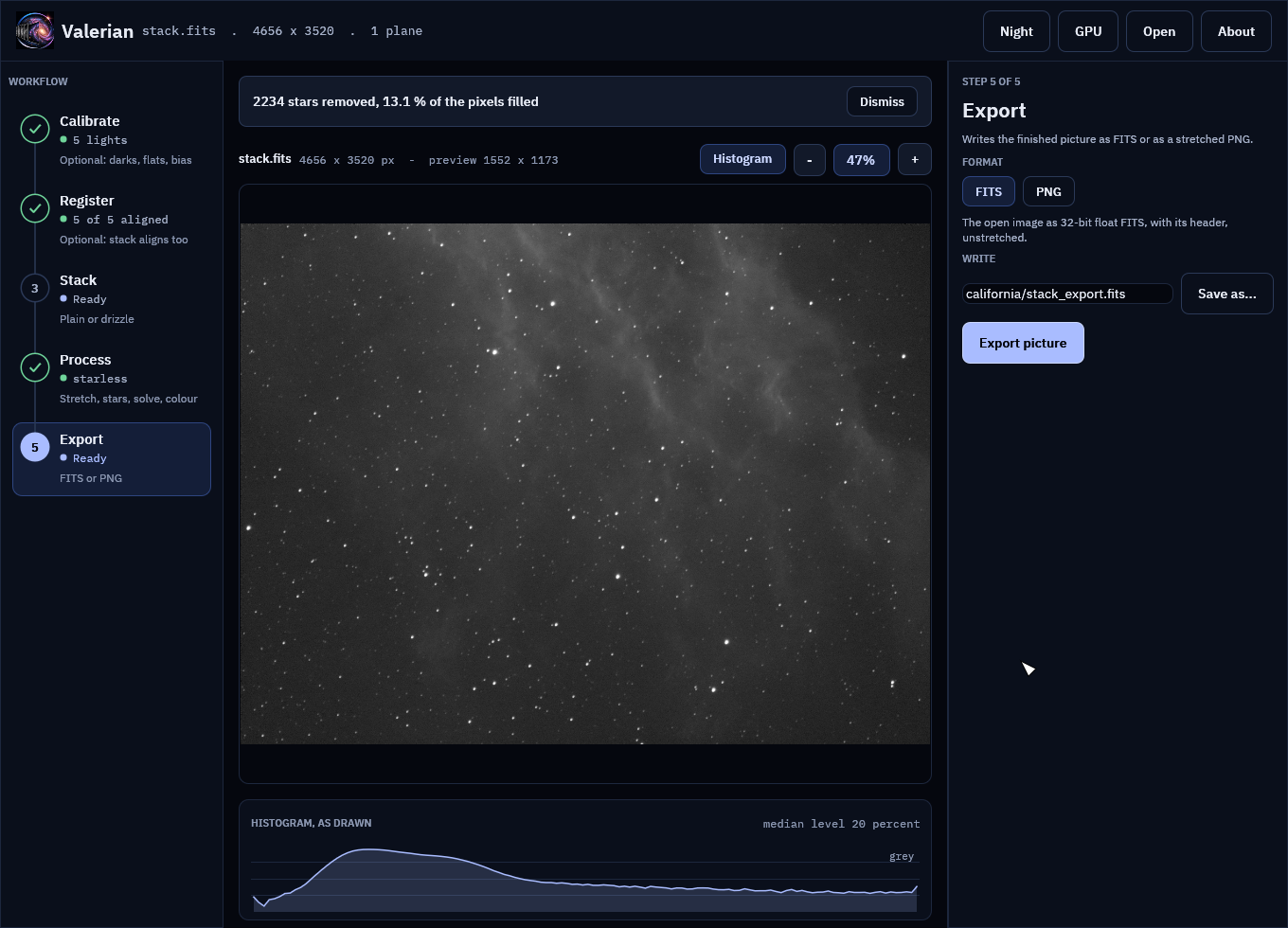
Open Export, choose PNG for a picture to share or FITS to keep the data, check the name, and press Export picture.
Part 2: one-shot colour, no calibration frames
1. Stack the raw frames
Skip Calibrate and Register (Seestar frames arrive calibrated enough, and Stack aligns). Open
Stack, put ic5070/subs in Frames, leave the output at ic5070-stack.fits, and press
Stack frames. Raw Bayer frames are demosaiced first. About half a minute on a modern machine.
2. Stretch
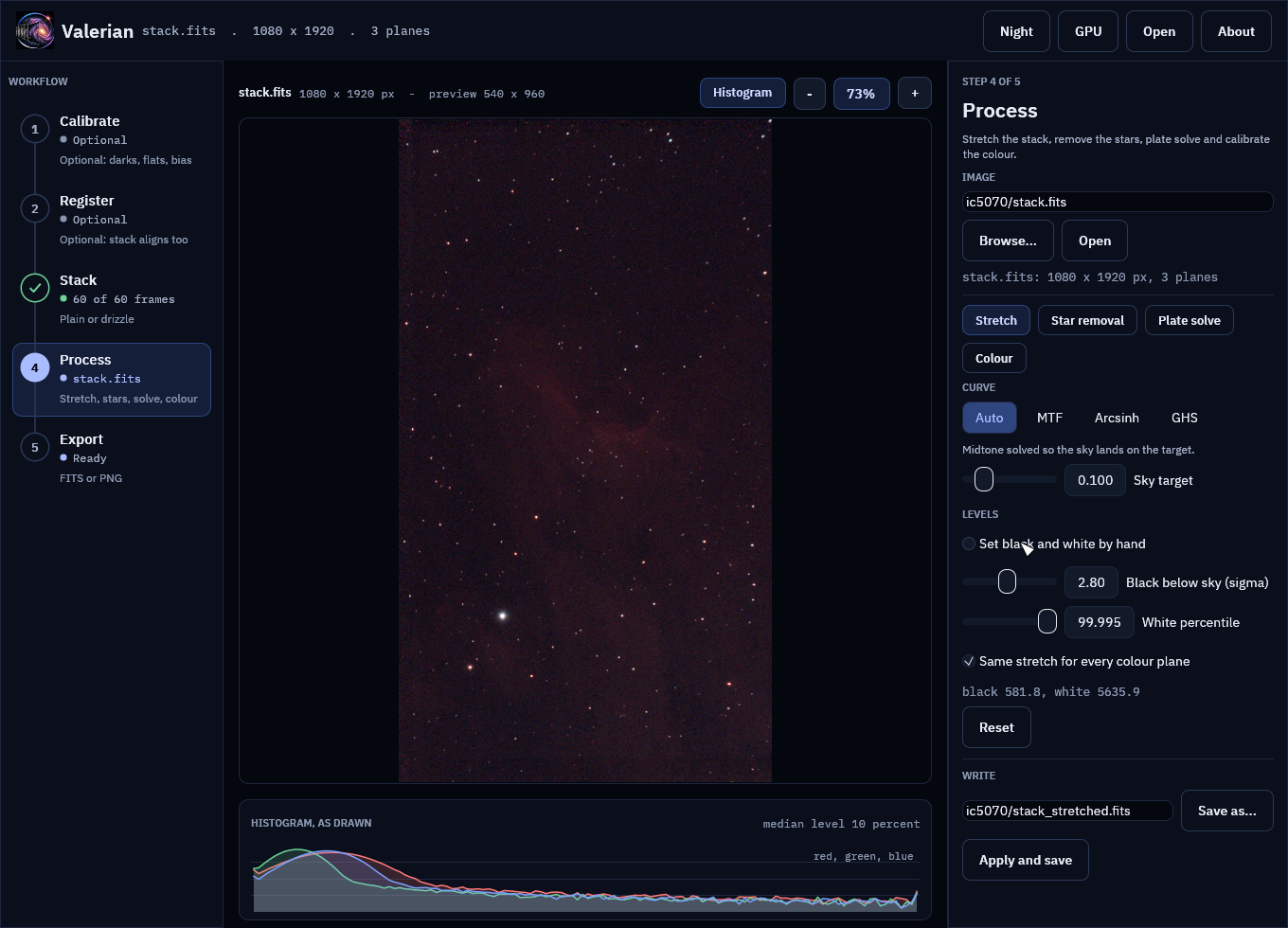
Leave "Same stretch for every colour plane" ticked so the colours keep their balance.
3. Plate solve
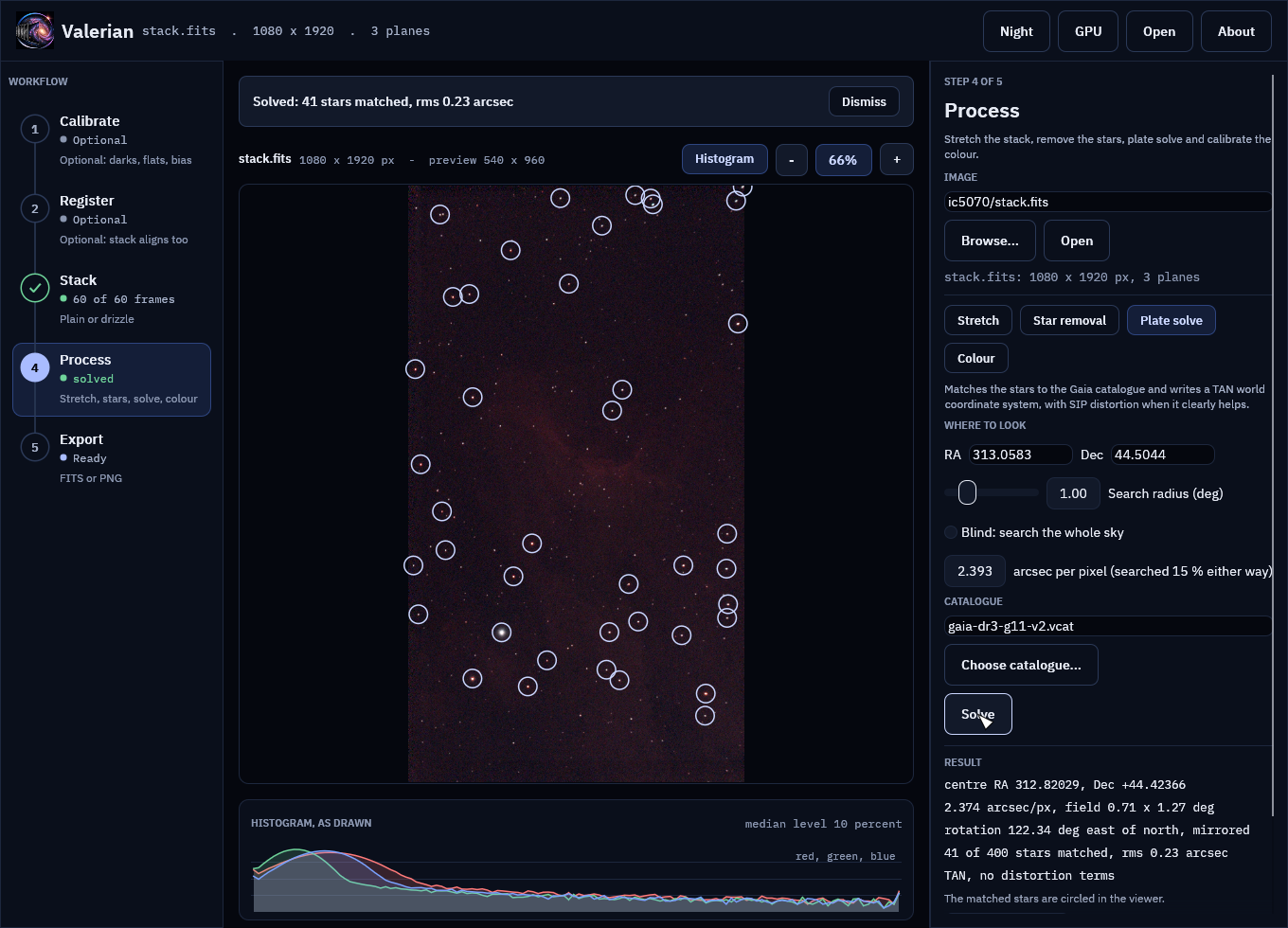
Choose Plate solve. The position (from the header RA and Dec), the search radius and the pixel scale are filled in. If the catalogue is not beside the program, press Choose catalogue.... Press Solve. Expect about 40 stars matched with a residual near 0.1 pixel, circled in the viewer.
4. Colour
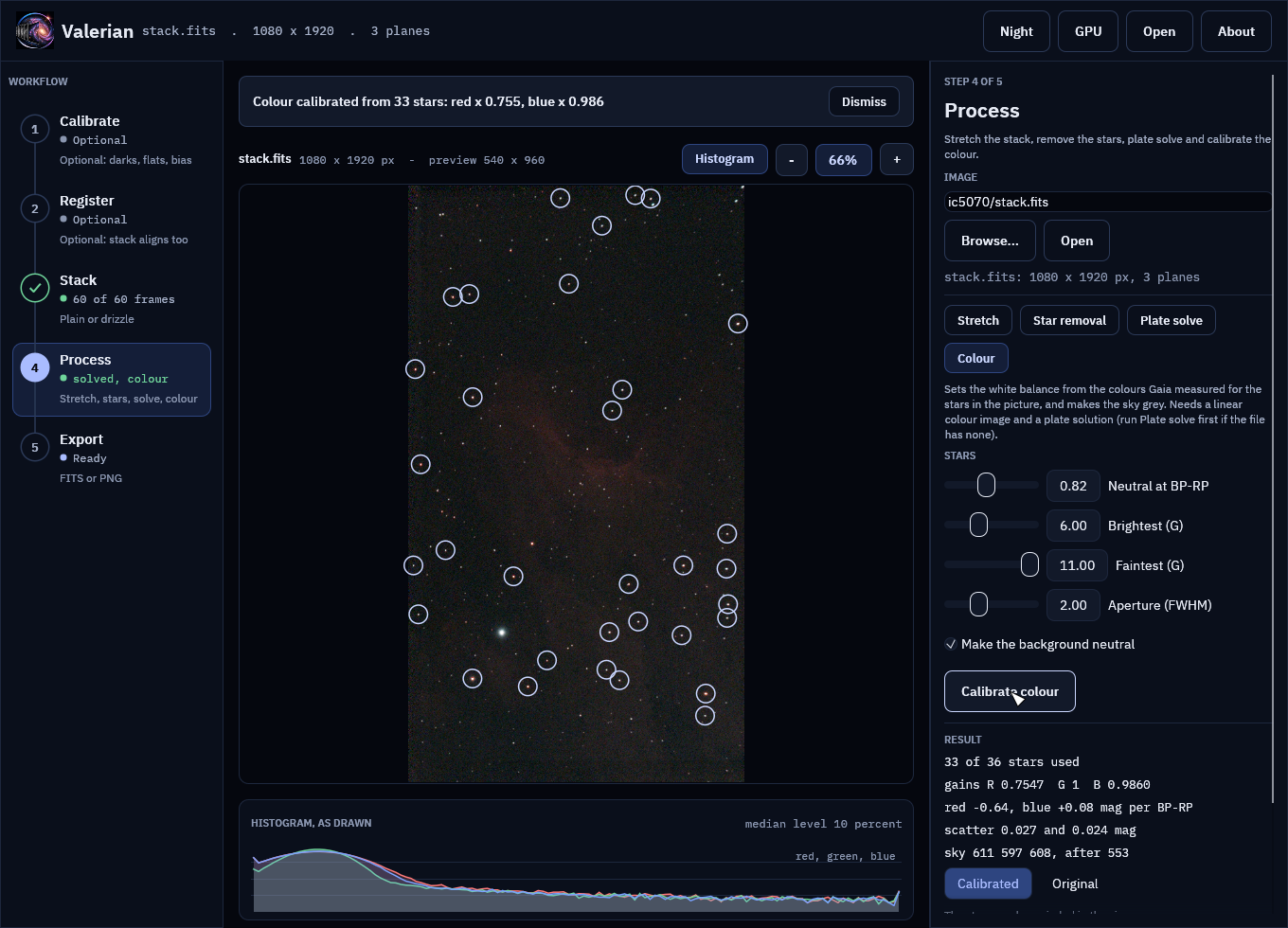
Choose Colour and press Calibrate colour (defaults). It measures the Gaia stars in each colour; expect around 30 stars used and gains close to "red x 0.76, blue x 0.99" on this data. Original and Calibrated compare.
5. Star removal, and drizzle
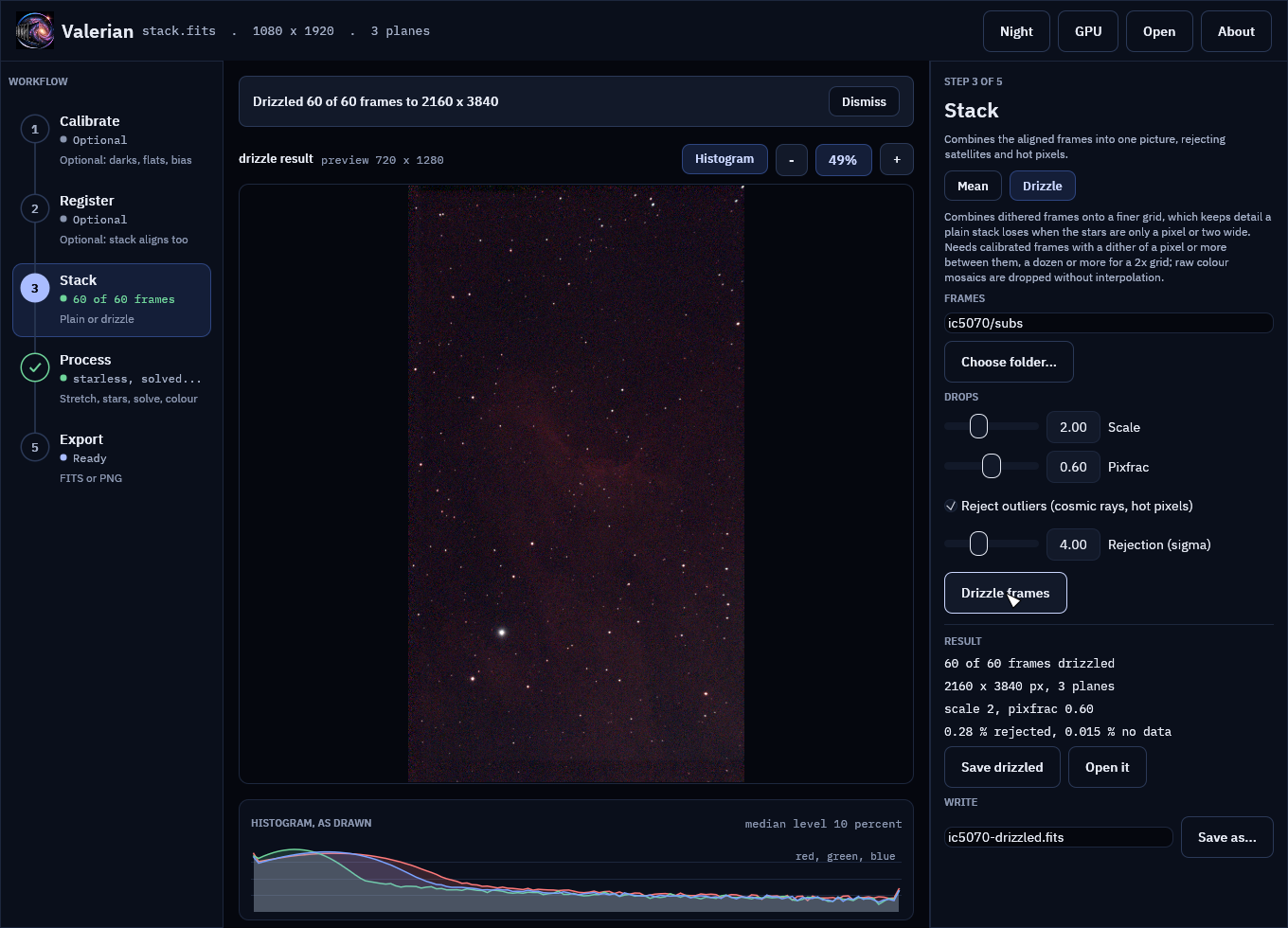
Star removal works as in Part 1. For Drizzle, open Stack, choose the Drizzle chip, put
ic5070/subs in Frames, keep Scale 2 and Pixfrac 0.6, and press Drizzle frames. Open it makes
the 2160 by 3840 result the working image.
Night vision
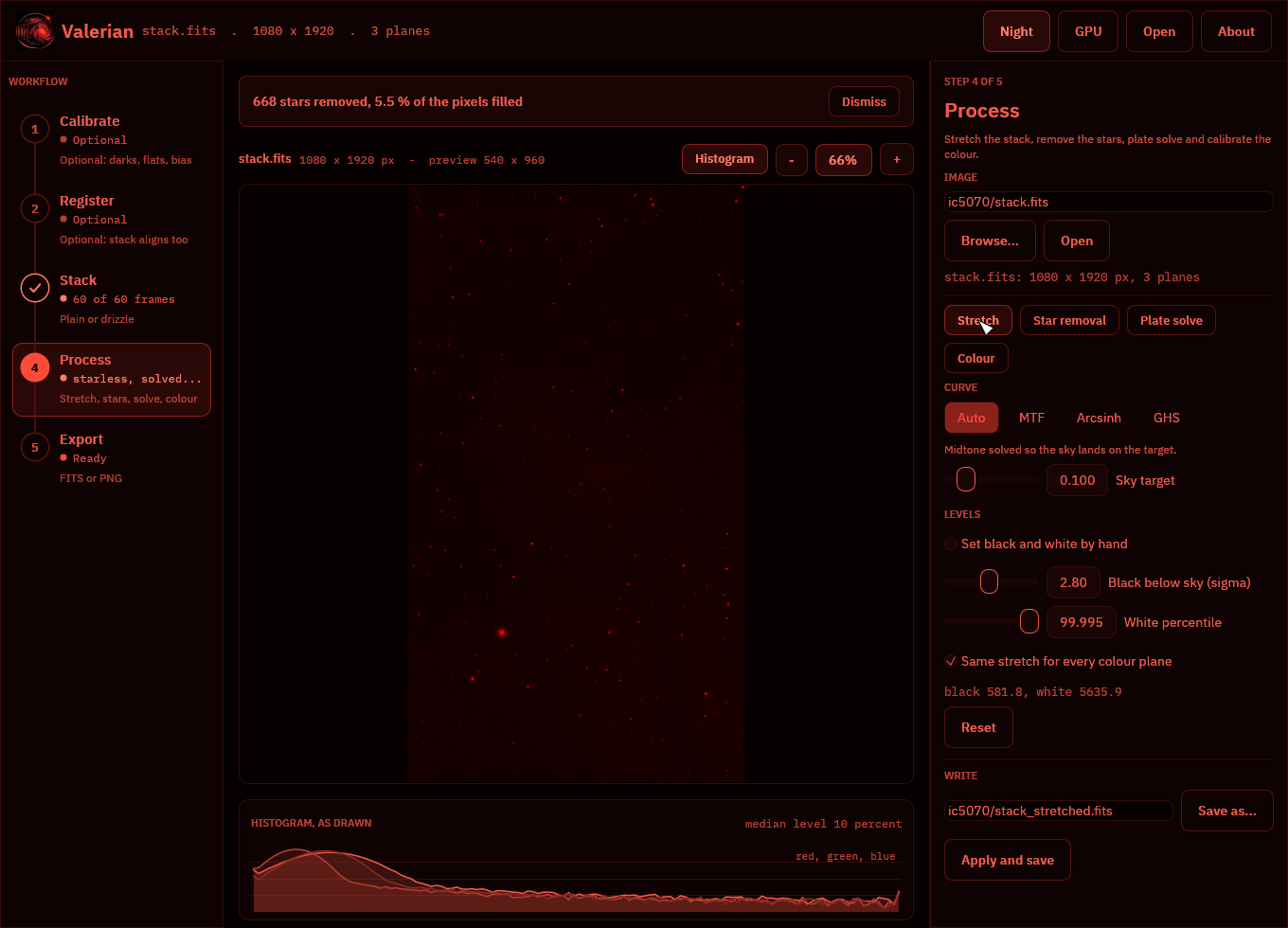
At the telescope press Night in the top bar (or F2). Everything becomes red on black, and the picture, histogram and logo are drawn in red only. The choice is remembered.
Troubleshooting
| You see | Because | Do |
|---|---|---|
| "Name a folder of FITS frames first." | A folder box is empty. | Fill it or press Choose.... |
| "... contains no FITS files" | The folder has no .fit, .fits or .fts. | Check the folder. |
| "Nothing to calibrate with" | Calibrate has no darks, flats or bias. | Add one, or skip the step. |
| "Registration failed" or "Stacking failed" | Fewer than two frames have 20 or more stars. | Check focus, clouds and the frames. |
| Plate solve fails | Wrong position or scale, or no catalogue. | Correct them, tick Blind, or choose the catalogue. |
| Colour says it needs a plate solution | The image has no WCS. | Run Plate solve first. |
| The picture looks black | A linear image has not been stretched. | Use Stretch; Auto is the default. |
| Zoom looks soft | The view is a reduced copy (1600 px). | Judge detail in the saved FITS. |
| An error stays in the notice strip | Errors stay until dismissed. | Press Dismiss. |